
User Access control and Tracking with Javelin/Sitelok
Access control to secured documents can be provided via username/password entry. Users ("members of the service") can be pre-registered (manually or via file upload) and passwords issued by the publisher to their own customers, or users can be allowed to self-register, e.g. as guests or for specific services. After entering their username and password they would then have access to the document or documents for which access permission has been granted. Login access can be automated and managed via a hidden link or iframe on your own site, if this is a preferred option, thereby hiding the link and/or the login details from the end user. Access for larger groups (e.g. universities, hospitals, corporates) can be controlled by IPAddresses with auto-login for the selected IPAddress blocks. Additional security measures can be specified, e.g. for controlling the number of simultaneous sessions a user may have or the number of browser instances
For full details of how the Wedoxx services work, including the user management and file management facilities, see the online Webdoxx User Guide
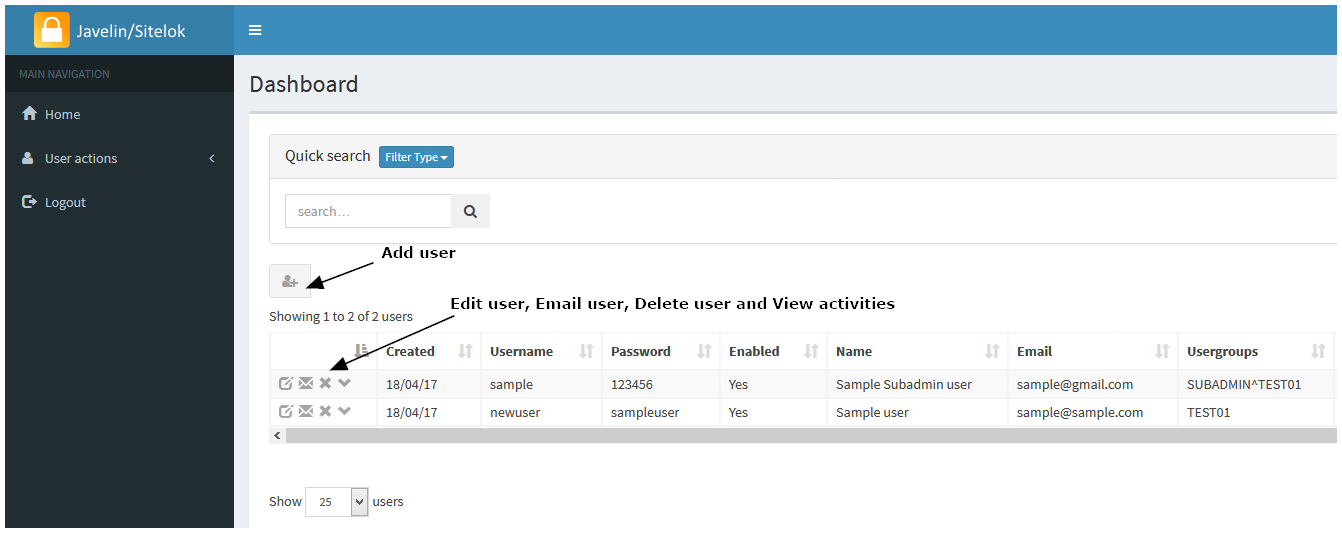
A screenshot of the basic "SubAdmin" user management facility is shown below, with more details and screenshots provided further down this page.
|
| When ADD USER is selected, the form below is displayed and the various fields shown should be completed. The email address must be in a valid email format, and the three optional fields shown (browser instances, IPAddress and concurrent sessions) should be left blank initially (see below for more details regarding these three fields, and also for details of optional bulk creation/importing of users). Leave the ENABLED field ticked otherwise the user will not be able to login, and select at least one USERGROUP membership for the new user. You can select an expiry date for the usergroup membership or leave it blank for no expiry date. These fields and settings can always be changed subsequently via the EDIT USER facility. |

|
Access to a specific document or documents for a specific user is controlled by:
- LINK (URL): providing the user with the specific URL for that document (directly or via a menu or via an iframe or page re-direction that has the link defined within it)
- PUBLIC or PRIVATE: defining whether the document itself is set for PUBLIC access (no login required) or PRIVATE access (Login required).
- USERGROUP: Private access is defined and controlled by what Group or Groups of registered users are permitted to access that particular document. The Group setting for a converted document can be specified as ALL (the pre-defined default), which allows access by any logged in user, or restricted to a specific named Group, e.g. TEST01. This Group name must be specified for the document in question - selection of the Group or Groups associated with a document is made via the FILES menu (File Management) facility for logged in subscribers. If the registered user is assigned as a member of Group TEST01 then they will be permitted to view that document, otherwise access will not be permitted. See further the "Scenario" provided at the bottom of this page. If you require additional usergroups you simply ask us to add them to your user record, and then you can use the FILES menu to Edit Group - this enables you to specify the usergroup members who will have access to this document. If you create a user who has membership of a specific usergroup or usergroups, they will be able to access the file that matches the usergroup, otherwise they will be denied access. You can even have a 'catch all' usergroup that you assign to every document, and assign membership of this group to just your 'premium' users
- ENABLING: users can also be instantly enabled/disabled, and/or have date/time restrictions placed on their user group membership so that their access to documents assigned to those particular user groups automatically expires on a specified date
User Groups are created by the overall System Administrator - in general this is carried out by our team or for dedicated services, by the publisher's own team. Each of your users can then be associated with the Group or Groups that you specify for them and as a result, will potentially have access to all documents that are members of that Group. Every user should be assigned membership of at least one Group
The default service arrangement permits multiple logins on the same username/password, with all logins events tracked. Auto-login via staic IPAddresses can be provided if required. Unique (non-concurrent) service access can be provided via the sessions and browser instances options. These options are described below. Note that the service will automatically log a user out after a period of inactivity, and will also limit the overall duration of sessions.
BROWSER INSTANCES: Access can be restricted to a specified number of devices if so desired. This feature is enabled by setting a value in the Browser instances field for the user record in question. This could be 10, for example, which would allow access from up to 10 devices. Each time a user logs in with that username on a particular device the browser instances counter is reduced by 1 and a browser cookie set on that device to indicate that it can login to the service. When the counter drops to 0 no more new devices (browsers) can be used to login with that username/password unless the user record is amended to increase the count once more. If you decide to use this feature you MUST inform your customers that your service uses cookies. Note that the Browser instances option is a way of restricting username/password sharing, combined with the logging of events. Please see the ICO Guidance on Cookies for guidance from the UK authorities on compliance. A session-based concurrency option is also provided (see below), to limit the number of sessions per user login, which is more like a banking app, where if the session count is set to 1 for a user, and someone tries to login from a separate device, the second user will not be allowed to login.
CONCURRENT SESSIONS: Note that the concept of concurrent and non-concurrent logins is not straightforward in a web-based application environment, as in almost all cases users do not log out of a service they simply exit the browser or current tab, or just leave themselves logged in. Webdoxx assigns a unique sessionID to users when they login and tracks their service usage, including IPAddress and login/logout events etc. The default arrangement allows for multiple concurrent logins for a given username. The Concurrent sessions field allows you to specify that only 1, or maybe 2 concurrent sessions are permitted with a given username/password. This prevent concurrent sessions but does not prevent non-concurrent sessions (i.e. username/password sharing)
IPADDRESS: If a valid IPV4 address or address block is specified in this field, that corresponds to the static IPAddress of the user or their organization, they will be auto-logged in to documents they access via links that are valid for them, without being prompted for a username/password entry. IPAddress blcoks allow for wildcard entry using * characters, e.g. 123.234.34.*
IMPORTING/BULK CREATION OF USERS: With the standard setup for user management, importing (and exporting) of user records is available via a special request to our support team (with dedicated services this can be managed by the publisher's own team). Large numbers of user records from existing client contacts or pre-generated dummy user records can be imported and various fields pre-set. The easiest way to create an import file for our team is to use Excel and create a csv file with fieldnames in the first line and entries in subsequent lines. The typical format would be: "username","password","enabled","name","email","usergroups","Custom4","Custom6" where the password field can be left blank if randomly generated passwords are preferred, enabled should be set to YES normally, usergroups can be specified with end dates or specified to be automatically added from those available, Custom4 is the browser instances count (if required) and Custom6 is the sessions count (if required)
Subscription scenario
This scenario shows how you can use the service to offer a subscription service to your own customers and control their access. This is just one scenario and others may be more appropriate depending on the way in which you decide to manage your target customers and the various documents you wish to make available on a subscription payment basis:
- A company called ABC Inc with 100 branches subscribes to your publication(s) service on March 1st 2026. The subscription is for 12 months. You register a single new user, abcuser, with a browser count of 100 devices and membership of your usergroup "ABC". You specify that their membership of the ABC usergroup is set to expire on 28th Feb 2027
- you upload the 2026 manual and set the user group for this publication to ABC via the FILE menu (file management facility)
- you provide ABC Inc with the link to your publication and the username and password for their organization (this could be more than one username/password of course, e.g. one for head office with 10 devices permitted, plus another for their 100 branches with perhaps 120 devices permitted - to allow for device changes in the branches). Note that the link could be provided via email or via your own website (and could be "hidden" on your site, with or without auto-login to the service, or even embedded on your site via an iframe).
- ABC Inc and their branch network use the service and all is fine, but then you issue the 2027 manual in January 2027. As with the 2026 manual you upload it, use the FILES menu to set the usergroup to ABC and let all your clients (including ABC Inc) know that a new version of the manual is available and provide them with the new links. ABC Inc is just one of these clients and they let their users/branches know the new link (or this is handled automatically via your own website links/iframe setup), and continue as before
- ABC Inc fail to pay for the next year's subscription and think they can continue using the service, but from 1st March 2027 they will not be able to because their usergroup membership has expired.
- Another subscriber, DEF Inc, say, has done exactly the same but subscribed in Jan 2026, does pay for the 2026 subscription so you change their group expiry date to 1st Feb 2027 and their users will be able to access the 2026 and 20270 manuals throughout the period to the end of their 2026/2027 subscription
- ABC Inc decide to pay their subscription after all - you amend their subscription expiry date and their access springs into life again for all their users and both versions of the manual
- In addition to the above, you can simply enable/disable any user at any time, for example if you detect misuse of the service or non-payment of a monthly subscription within a year' subscription window
Sessions and logins/logouts
The WEBDOXX services use session IDs to identify logged in users. Whilst a browser is open and the user remains logged in, they can access the document or documents for which access has been enabled without repeatedly having to login for each document or after closing and opening tabs, UNLESS either they explicitly logout via a logout button, or a logout is forced upon them as a result of a timeout or programmatically generated logout event. A timeout occurs if there is no activity for 1200 seconds (20 minutes) on the Webdoxx service or the web server overall session time is reached. With services hosted on our managed services these settings can be amended if required.