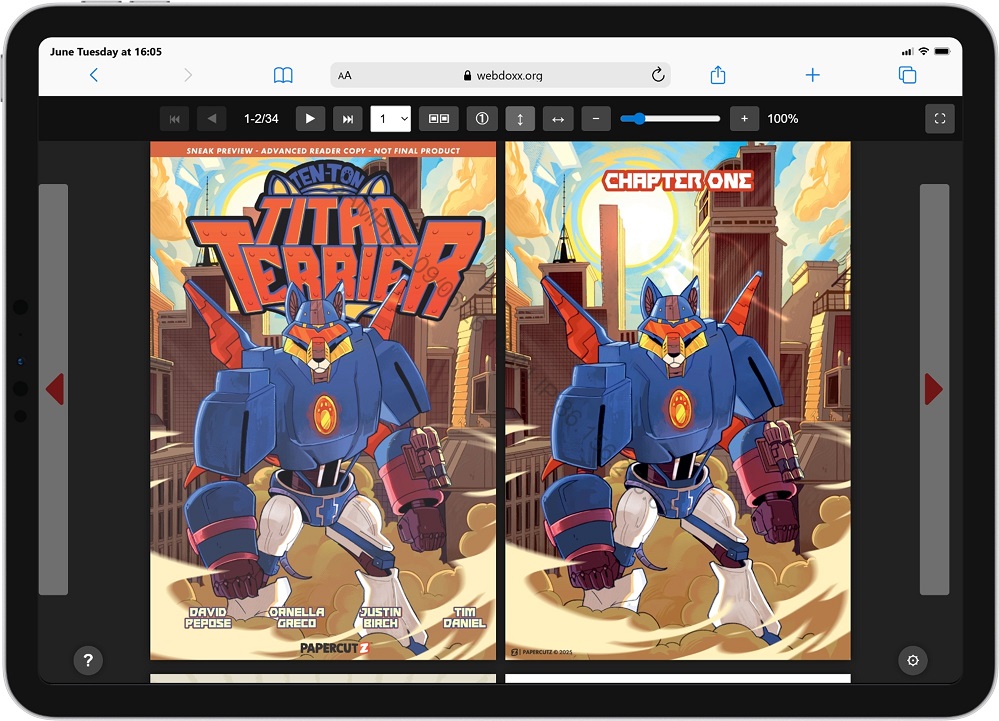
Graphic Viewer samples (CBZ) - click to view
"Ten-Ton" Comic
Source: Papercutz (preview)
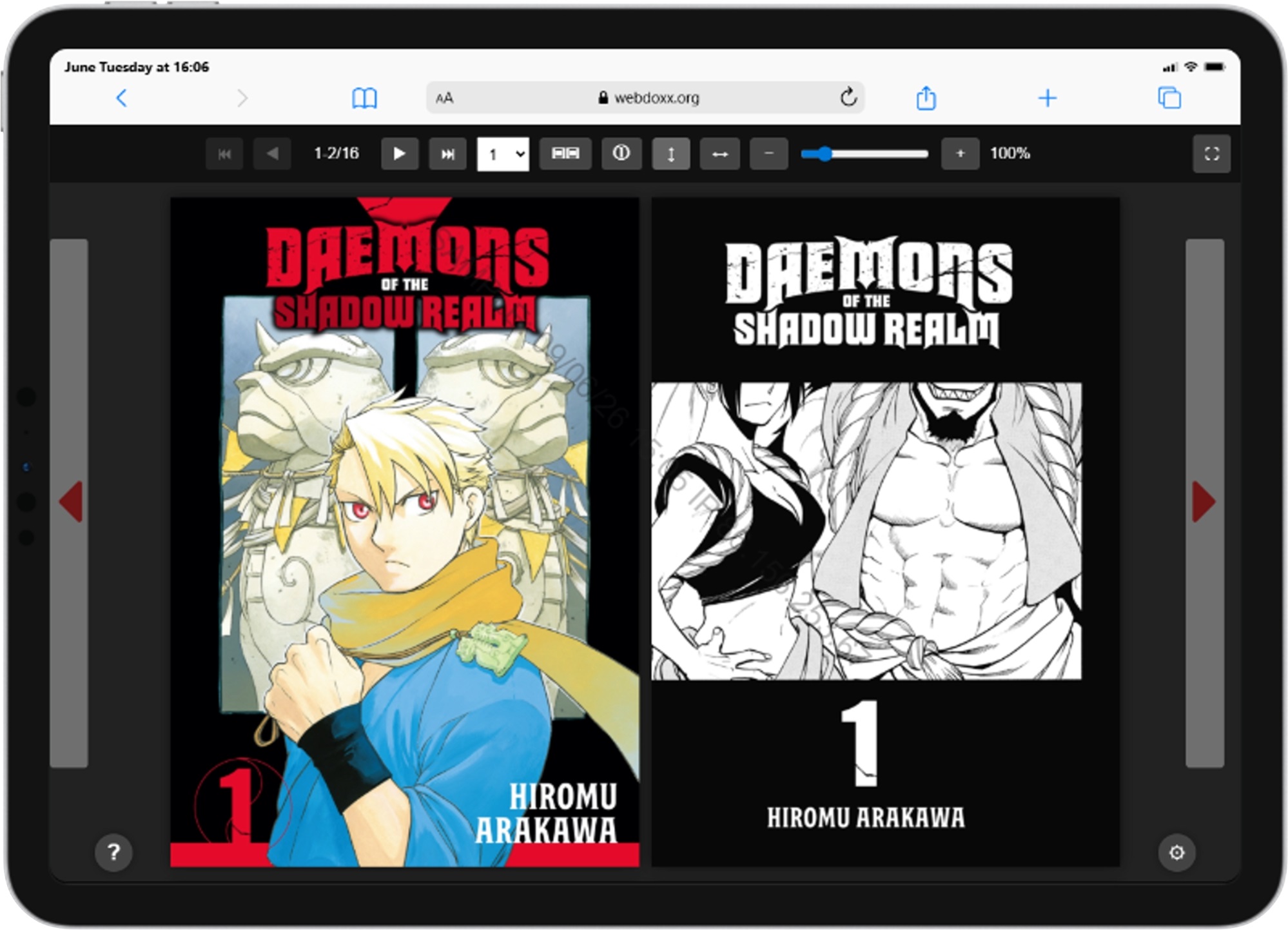
"Daemons" Manga
Source: InternetArchive
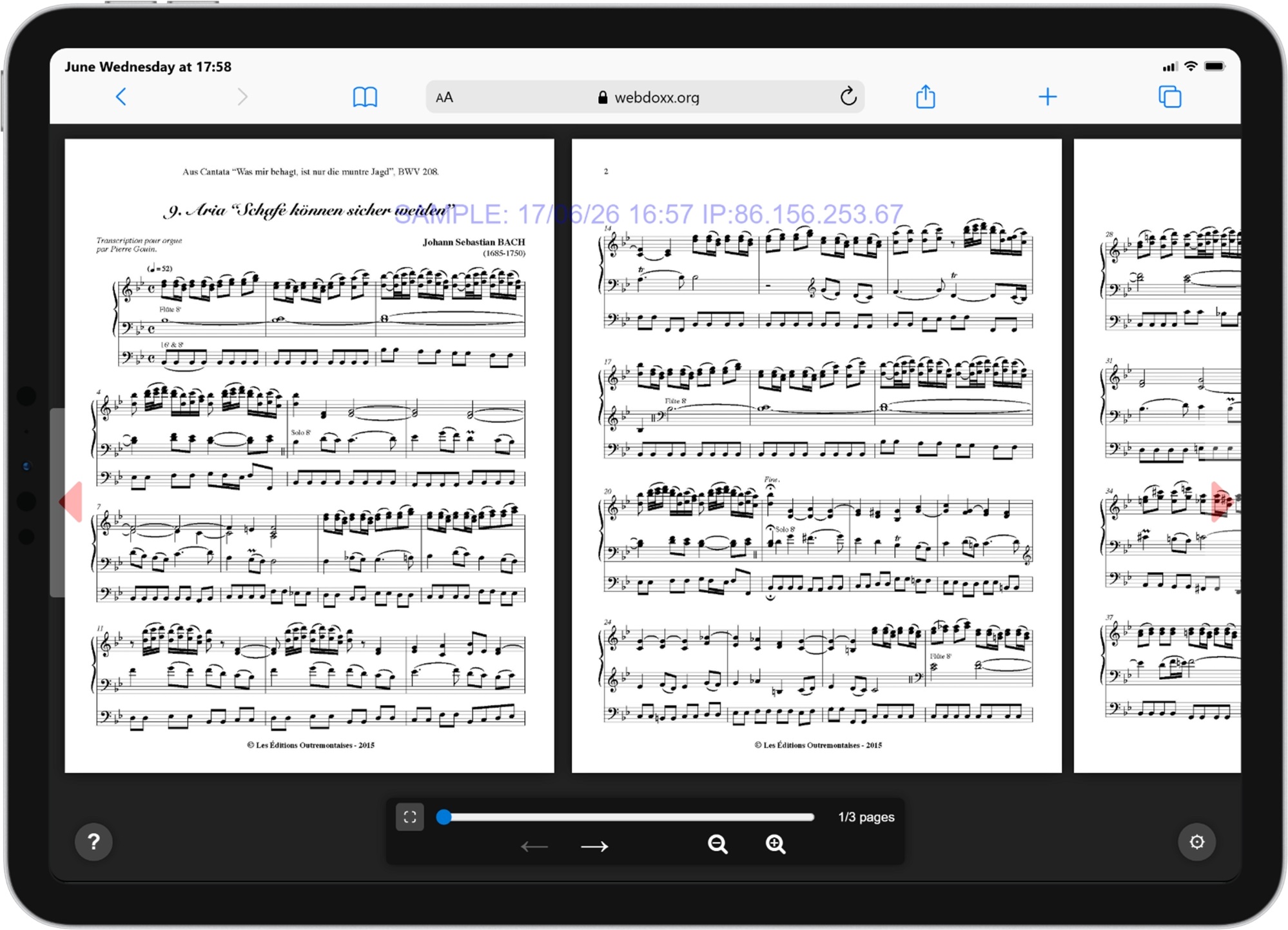
"Bach Aria" Score
Source: imslp.org
PDF Viewer samples - click to view
Comic
Source: MooreToons Publishing

RPG Manual
Source: DriveThruRPG

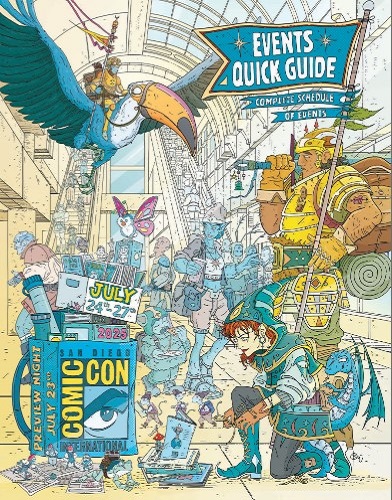
Comic-Con 2025 Guide
Source: Comic-Con
Guidance on using the Graphic Publications Viewer
Invoking CBZ/CBR files
The standard format for accessing a .cbz or .cbr file is to use the form: URL/viewer.php?file=filename.cbz where URL is typically https://www.webdoxx.org/publishers/graphics/ and filename is the name of the file to be dispalyed. The full URL can be augmented with zoom level, page number and 1-page or 2-page layouts at startup. These are handled by adding to the end of the URL optional elements, for example &z=75&format=2&page=7 which would zoom to 75%, open with 2-page layout, and open on page 7. The zoom level can be specified as zoom= or z= and can be a number, a percentage (e.g. 75 - do not include the % symbol) or fit-height or fit-width. For Manga the URL can be augmented with &manga or &manga=1, whilst &manga=2 provides left-right page order and display. In addition, files can be opened at a specified page by including &page=nn
Desktop/laptop devices
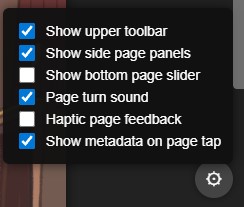
Use mouse or touchpad to select pages, toolbar buttons and mouse-wheel to scroll. Use settings cogwheel to enable/disable toolbar display, sidebar panels, page turn sound and haptic (vibration) feedback
Mobile devices
Swipe vertically to select pages. Use settings cogwheel button to enable/disable toolbar display; use the ? icon for on-screen help. Single-click or single-touch the page to see current page and file metadata
Toolbar elements (when shown - use Settings cogwheel to show or hide)

Single or two-page display
Use the toolbar icon to select single or two-page display. The circular toolbar icon with a 1 inside allows you to specify the first page as separate from the two-page spreads
Fit height/fit width and zoom
Use the toolbar double-headed arrow icons to select quick page fit options, and the zoom slider for selective zooming
Settings cogwheel
Use the Settings facility to show or hide the toolbar and sidebars, and enable optional audio and haptic (vibration) feedback. If metadata is available for CBZ/CBR files and is enabled, it will be displayed when the page is tapped. With &manga selected in the URL the default settings open with the top toolbar hidden and the lower toolbar enabled